Setting Up an Overall Goal
An overall goal is one target your organisation works towards across several campaigns. A school saving $25,000 for a new playground might run a colour run, a pie fundraiser and a donation page over the year. The overall goal adds them up, along with any money raised offline, and shows the total as a thermometer you can put on your website.
What counts towards a goal
- Campaigns you link to it. Each campaign counts the same amount raised that it shows on its own page. See Linking Campaigns to an Overall Goal.
- Manual donations. Money raised outside Raised, such as a cash mufti day or a grant. See Adding Money Raised Offline to a Goal.
Your campaigns keep running exactly as they do now. Linking them to a goal does not change their pages, payouts or reports.
Creating a goal
- In your dashboard, go to Overall Goals under Campaign Management.
- Click New goal.
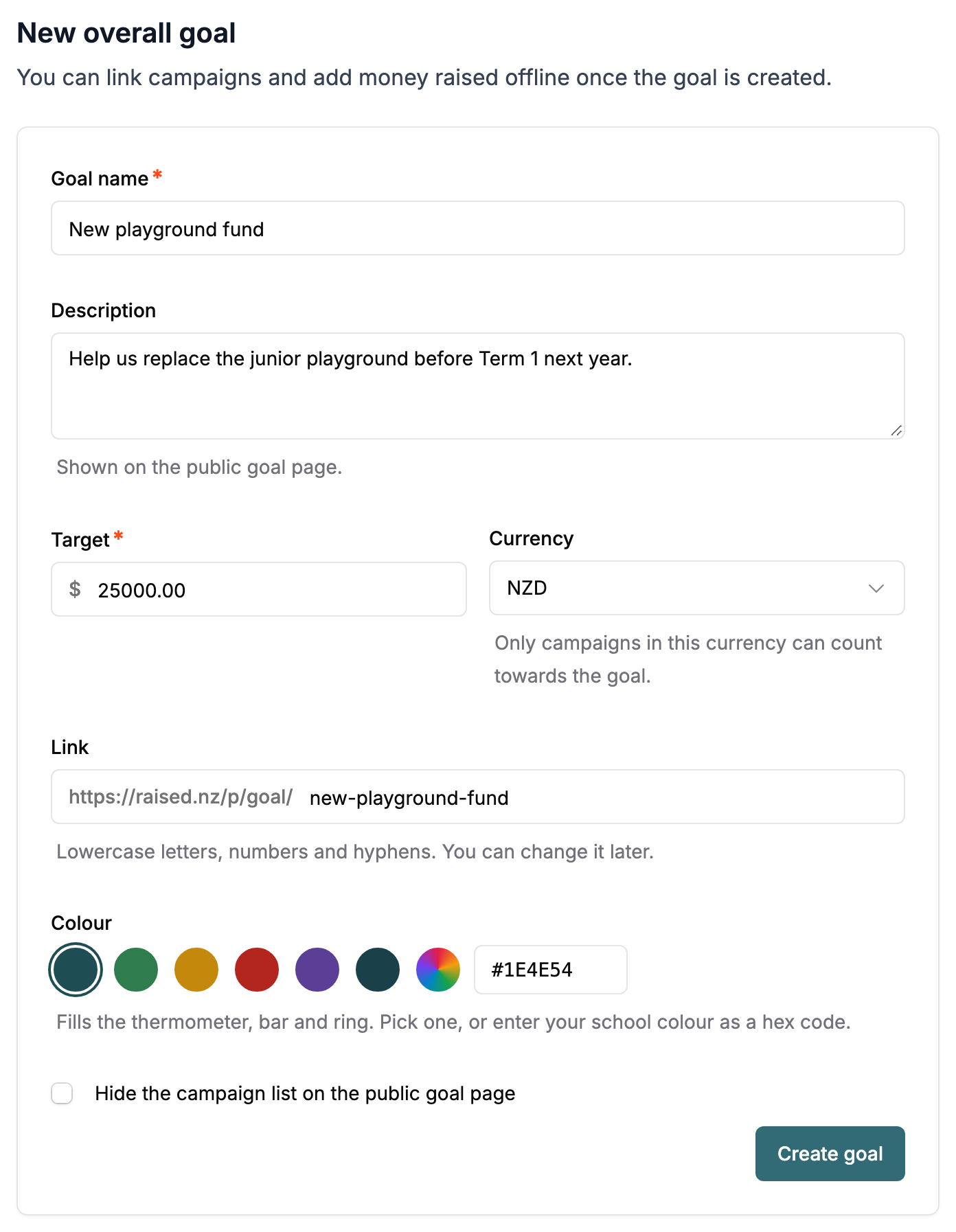
- Enter a Goal name, such as "New playground fund". This is the heading on the public page and the embed.
- Add a Description if you like. It shows on the public goal page, so say what the money is for.
- Enter your Target.
- Choose the Currency. Only campaigns in this currency can count towards the goal, and you cannot change it after the goal is created.
- Check the Link. It is filled in from the goal name, such as
new-playground-fund, and becomes the address of your public goal page. Change it to anything you like using lowercase letters, numbers and hyphens. - Pick a Colour for the thermometer, bar and ring. Choose one of the swatches, click the multicoloured swatch to pick any colour, or type your school colour as a hex code, such as
#0F3B5F. - Click Create goal.
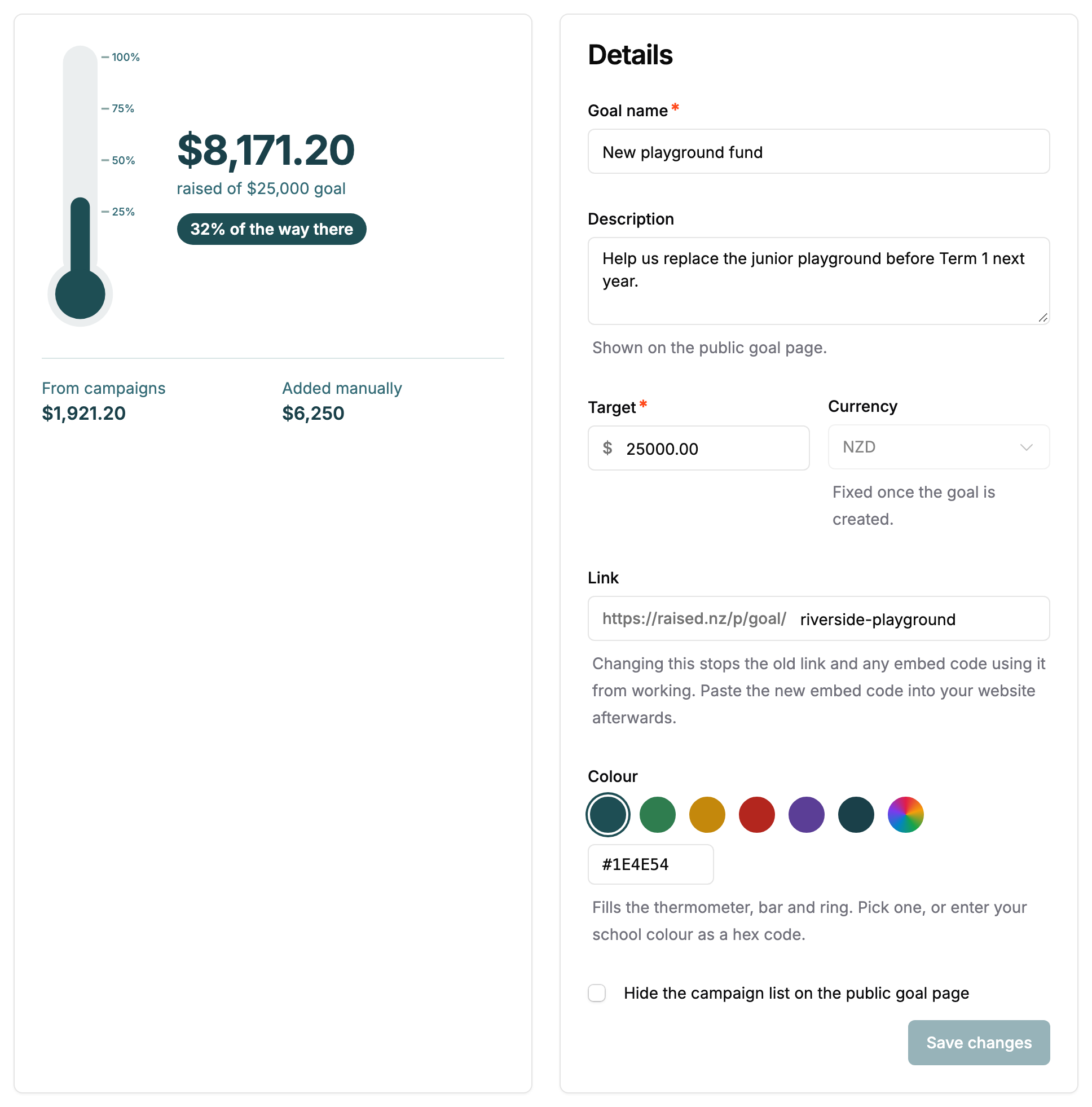
You land on the goal's page, where you can link campaigns, add manual donations and copy the embed code.
Editing or deleting a goal
Change the name, description, target, link, colour or campaign list setting in the Details card, then click Save changes. The public page and every embed update on their next load.
Changing the Link is different: the old link and any embed code using it stop working straight away. If the thermometer is already on your website, copy the new embed code and paste it in again.
To delete a goal, click Delete goal at the top of its page. The public page and embed stop working straight away. Your campaigns and the money they raised are not affected. They just stop counting towards the goal, and you can link them to another one.
Who can manage goals
| Role | What they can do |
|---|---|
| Owner, Admin, Manager | Create and edit goals, link campaigns, add manual donations and delete goals |
| Read-only | View goals and their totals |
| Members limited to particular campaigns | Cannot see goals, because a goal covers every campaign |
Overall goals are available to organisations. There is no extra charge for them.